Before your AI assistant can do anything with your construction admin, Bouw Botje needs access to Exact Online Construction (Exact Online Bouw). That does not work with a username and password, but with an API key: a long code you create once in Exact Online Construction and paste into Bouw Botje. Below are the four steps, with screenshots. All in all it takes about five minutes. The screenshots show the Dutch interface, and the Bouw Botje app itself is in Dutch as well; the English labels are given alongside.
Step 1: open the API access page in Exact Online Construction
Go to start.bouw7.nl/my-account/api-access and sign in with your Exact Online Construction account. You will land on the page API toegang (API access). If you cannot see that page, your account probably lacks administrator rights — ask your administrator to create the key or to grant you those rights.
Step 2: generate an API key (if you do not have one yet)
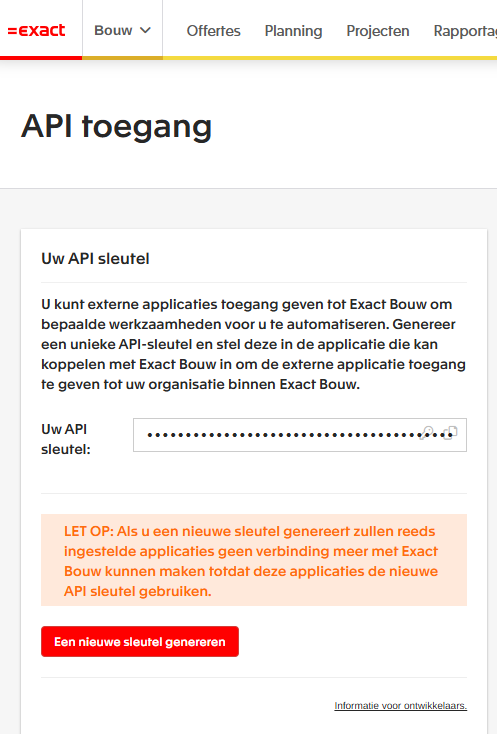
Is there already a key in the field Uw API sleutel (Your API key)? Then copy it. If the field is empty, click Een nieuwe sleutel genereren (Generate a new key) and copy the key that appears.
Please note: if you generate a new key while one already exists, the old key stops working. Other applications connected to Exact Online Construction with that old key lose their connection until you enter the new key there as well. So preferably reuse the existing key.
Step 3: enter the key in Bouw Botje
Sign in to Bouw Botje and open the connection screen: bouwbotje.nl/app/connect-bouw7.php. Paste the key into the field Exact Online Bouw API-key and click Koppelen (Connect). Bouw Botje verifies the key directly with Exact Online Construction, retrieves your organisation name and creates a separate, isolated database for each administration. The key itself is stored encrypted and is linked to your account only.
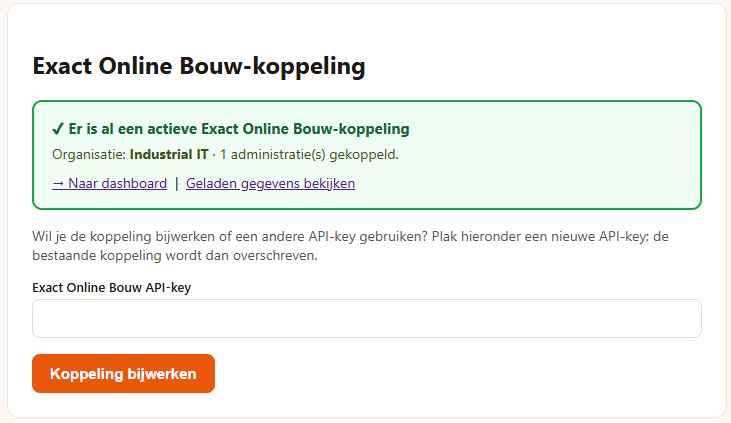
Seeing an error? Check that you copied the complete key (without leading or trailing spaces) and that the key has not been regenerated in the meantime. You can always switch to a different key: paste the new key into the same screen and click Koppeling bijwerken (Update connection).
Step 4: load your data
The connection is in place, but Bouw Botje does not have your projects, contacts and invoices yet. Go to Geladen gegevens (Loaded data, bouwbotje.nl/app/syncdataoverview.php) and start the synchronisation. Bouw Botje fetches the data per administration and stores it in your own database, so your AI assistant can search it quickly without putting load on Exact Online Construction. The first run may take a few minutes; after that only changes are updated.
Next: connect your AI tool
With your data loaded, the final step is connecting your AI assistant (ChatGPT, Claude, Copilot or another MCP client). How that works per tool is explained in the connection guide. By default Bouw Botje is read-only: your assistant can report and look things up, but cannot change anything until you enable that yourself per user. For inspiration for your first questions, see the example prompts.
← Back to all articles